For years, filtering in Framer was painful.
You had to build component variants.
One for every category.
Then wire them all together with interactions.
And every time you added a new tag?
Back to square one.
The community had been screaming for a real solution.
But Framer finally delivered.
Dynamic Filters are here. And they change everything.
Before that, here's a word from our sponsor:
🚨 Why pay $79–$129 for just one template…when you can get 30+ templates for less? Most “premium” templates lock you into one layout, one style, and zero flexibility. With Pentaclay, you get an ever-growing library that gives you freedom to build websites your way—without extra cost. ✨ What’s inside Pentaclay: • 30+ Framer & Figma templates • 5–7 new templates added every month • Unlimited commercial licenses • Lifetime access available • Priority support
What Are Framer Dynamic Filters?
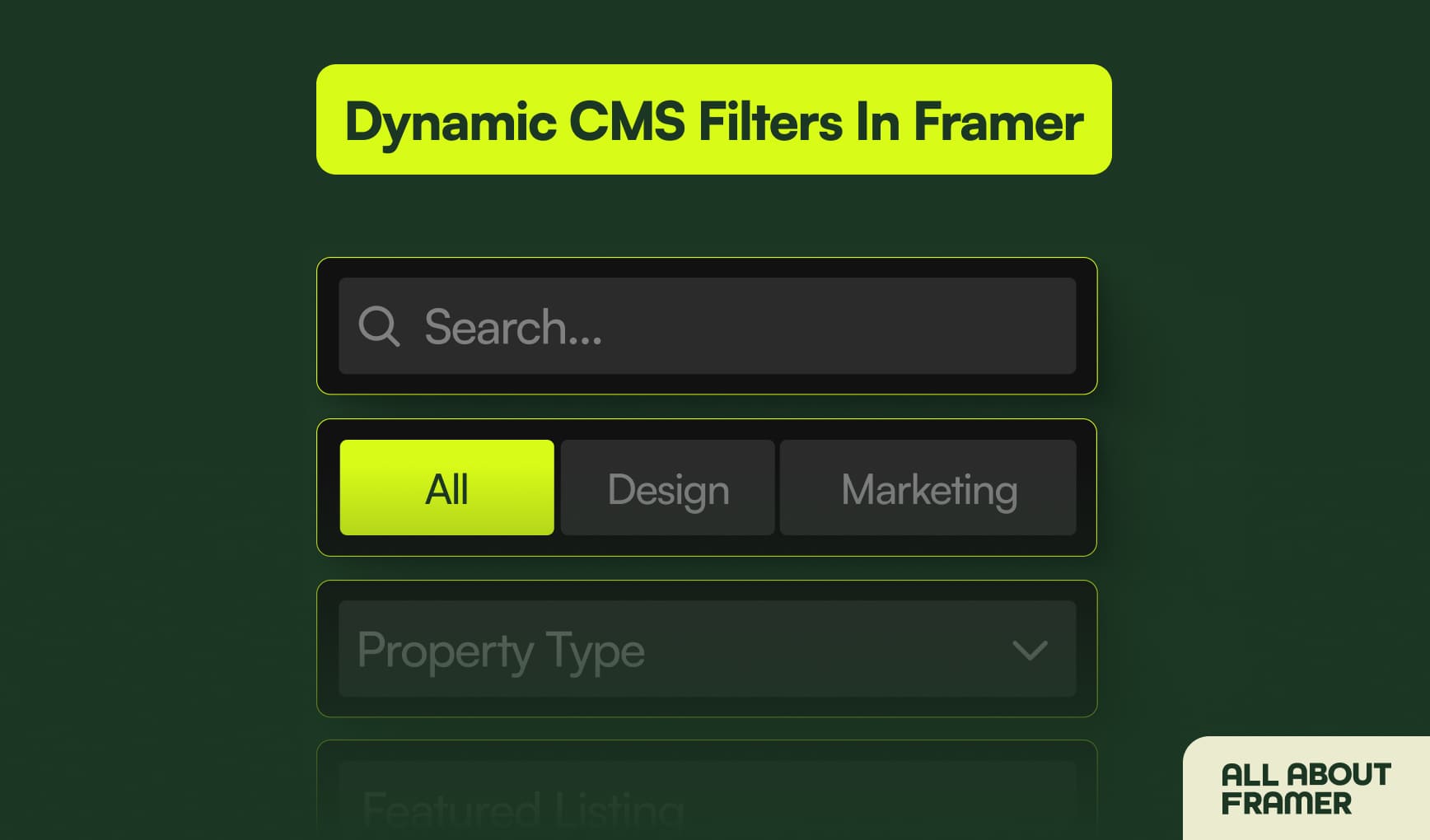
Dynamic Filters let your site visitors filter CMS content in real time.

No variants.
No complex component wiring.
No custom code.
You select your collection list, go to the Filters panel, and add whatever controls you need.
Search fields, tabs, dropdowns, checkboxes, toggles — they all just work.
Out of the box. Instantly.
Framer Dynamic Filters vs Static Filters: What's the Difference?
Framer has always had static filters built into collection lists.
Static filters are fixed.
You set them in the editor and they always apply.
"Only show items where Category equals Design."
That filter is always on. The visitor can't touch it.
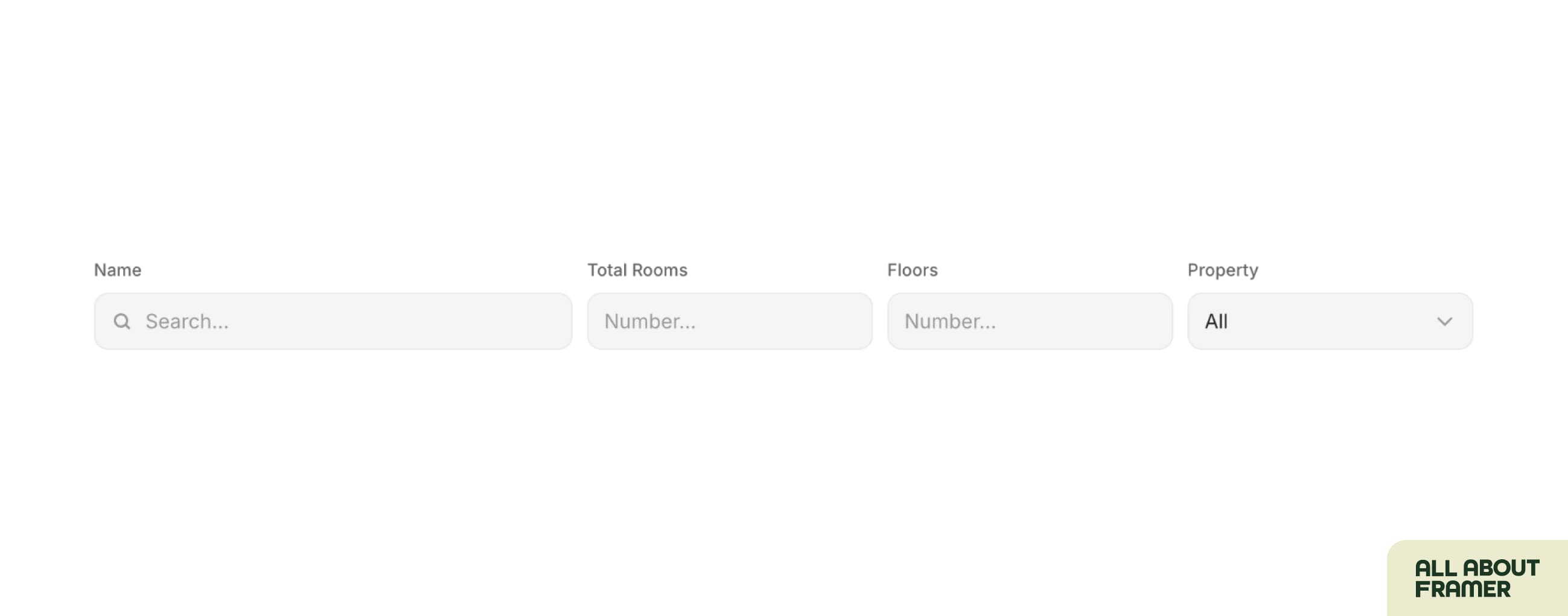
Dynamic Filters are visitor-controlled.
The visitor picks the category.
The visitor picks the tag.
The visitor can combine multiple filters at once.
Same underlying mechanic — completely different outcome.
All 5 Framer Dynamic Filter Types Explained
There are five filter controls available right now.
Each one works differently and suits a different use case.
Here's a breakdown.
Search Field

A live text input.
As the visitor types, the Framer CMS list updates in real time.
Best for: blogs, directories, help docs — anywhere people know what they're looking for.
Dynamic Tabs
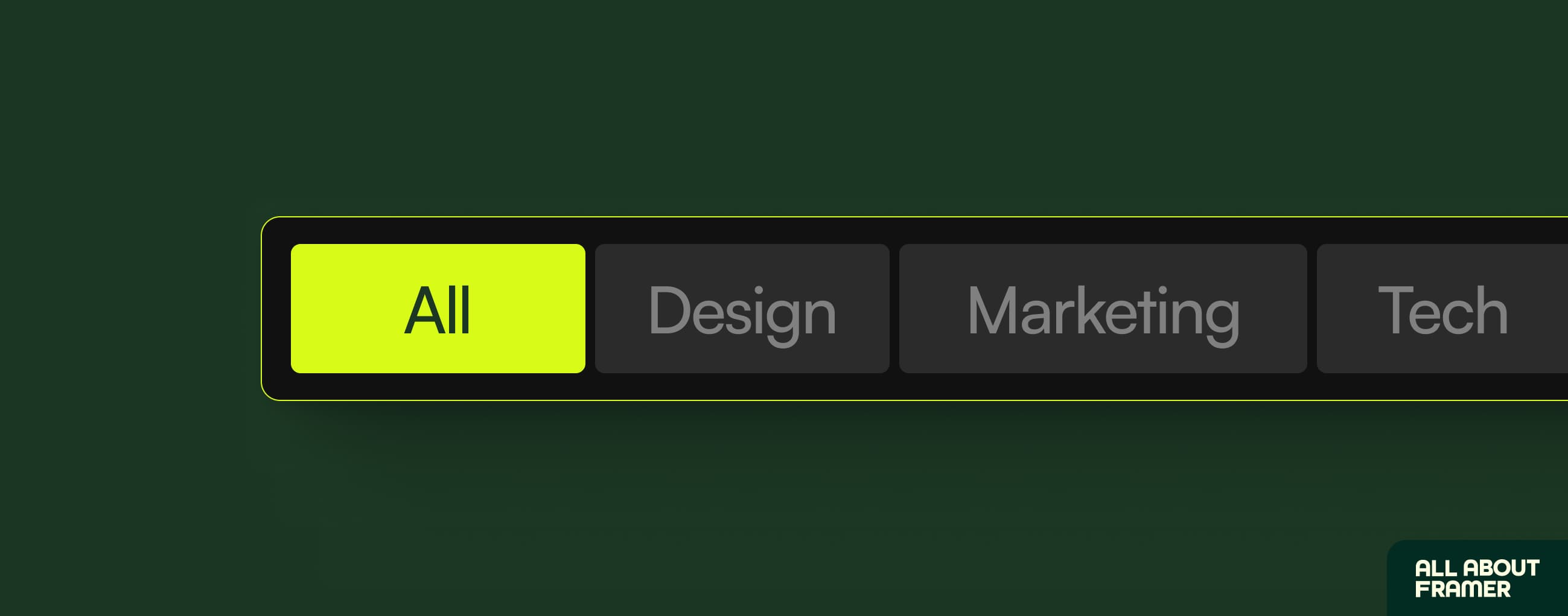
The most popular filter type.
Tabs let visitors switch between categories with a single click.
Think: All · Design · Development · Marketing.
Each tab is a full Framer component.
So you have complete control over the active and default states.
Icon on the active tab? Easy.
Custom colour per category? Done.
Best for: blogs, portfolios, case studies.
Dropdowns
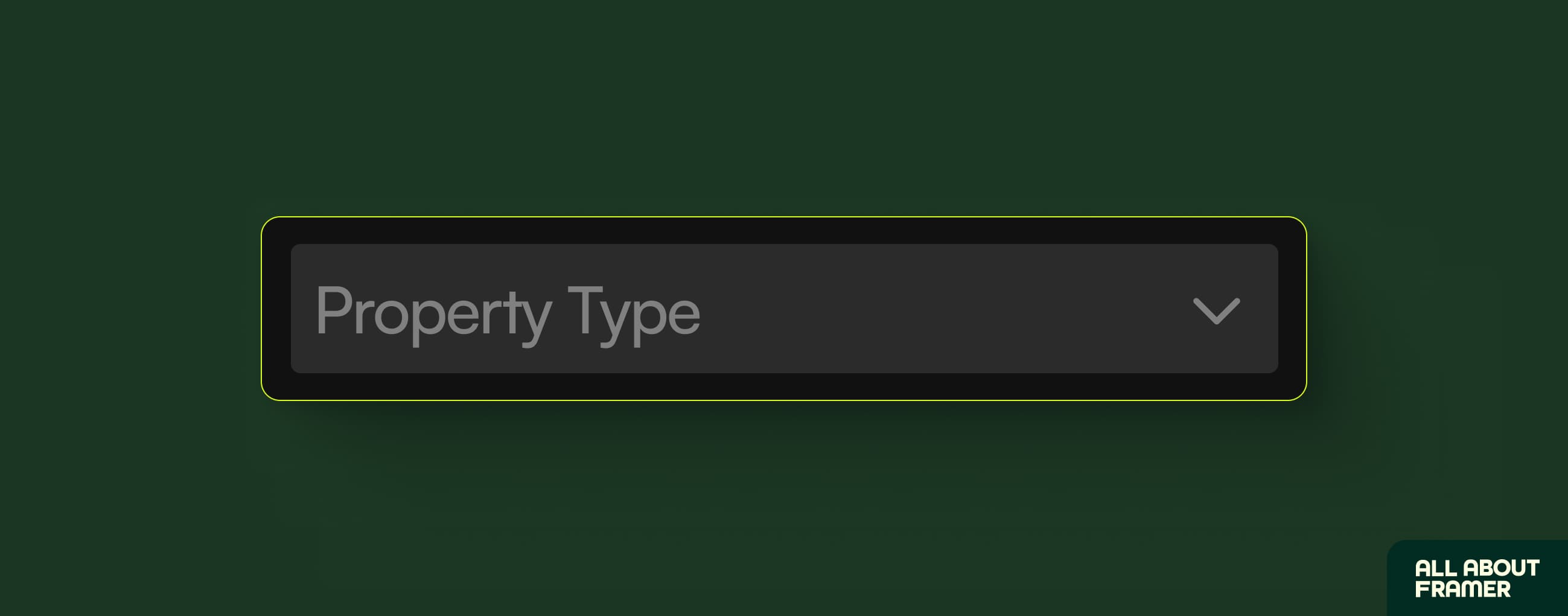
Same idea as tabs — but space efficient.
If you have 10+ categories, a dropdown keeps things tidy.
Best for: job boards, resource libraries, large directories.
Checkboxes
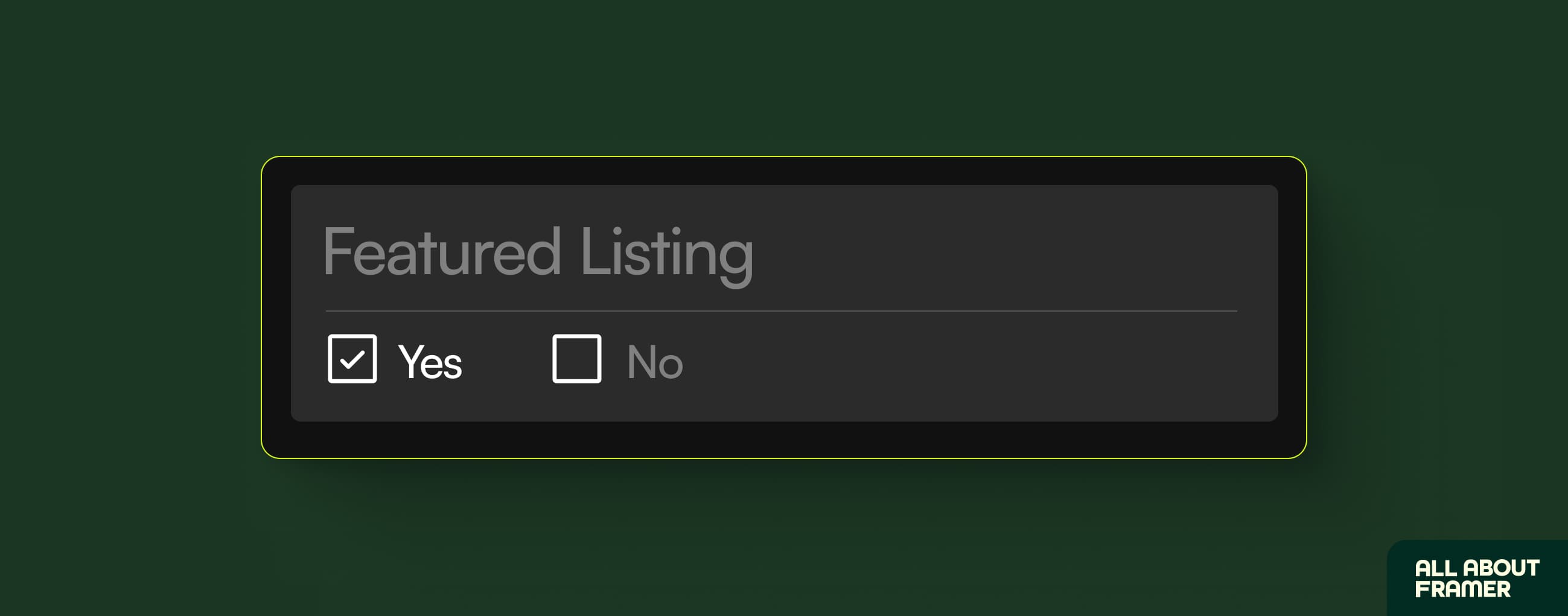
Let visitors select multiple values at once.
So they can filter by "Beginner" AND "Free" simultaneously.
Best for: course libraries, template galleries, any multi-criteria filtering.
Toggles
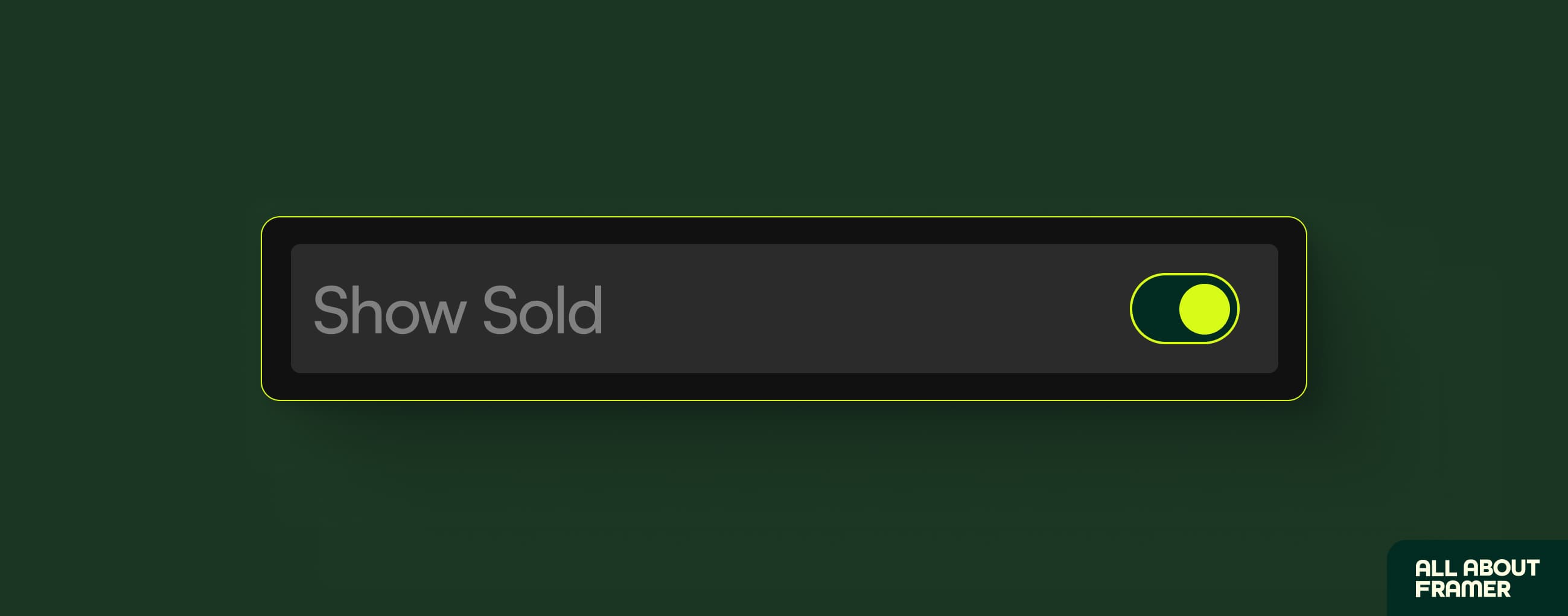
A simple on/off switch.
Best for: featured items, available listings, anything with a binary state.
How to Set Up Framer Dynamic Filters (Step by Step)
This is the part nobody explains properly.
Here's exactly how it works.
Step 1 — Select Your CMS Collection List
Open your Framer project.
Click on the collection list on your canvas.
Not the CMS panel, the actual list component on the page.
Step 2 — Open the Dynamic Filters Panel
With the list selected, look at the right-side panel.
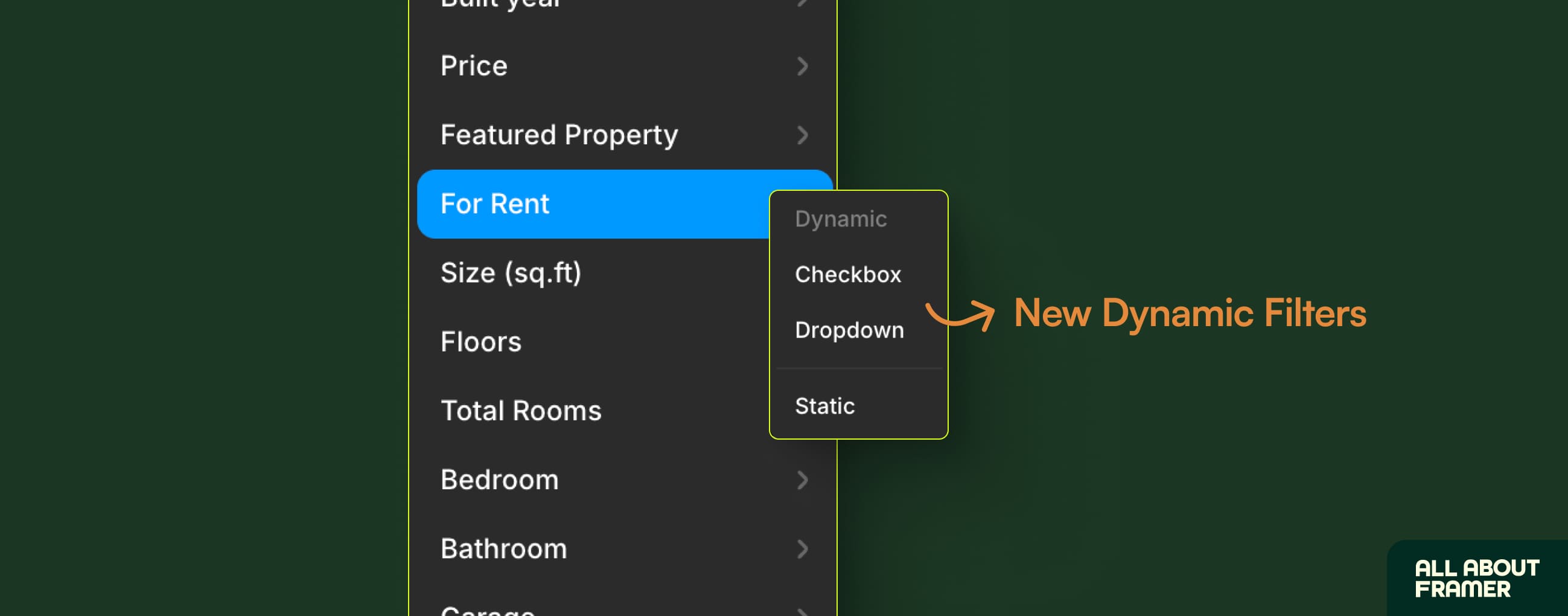
You'll see a Filters section.
For each filter, there's a new Dynamic menu.
That's where all the new controls live.
Step 3 — Add Your First Filter
Click + under Dynamic.
Choose your filter type.
Select the CMS field you want to filter by.
For a blog, that's probably your Category field.
Framer reads your CMS fields automatically and populates the options.
Hit confirm.
Your filter appears on the canvas instantly.
Step 4 — Preview and Watch It Work
Hit preview.
Click a tab or type in the search field.
Watch the list update in real time.
No variant setup.
No interaction wiring.
No debugging.
It just works.
Step 5 — Stack Multiple Filters Together
Go back to your collection list.
Add a search field.
Add a dropdown.
Add checkboxes.
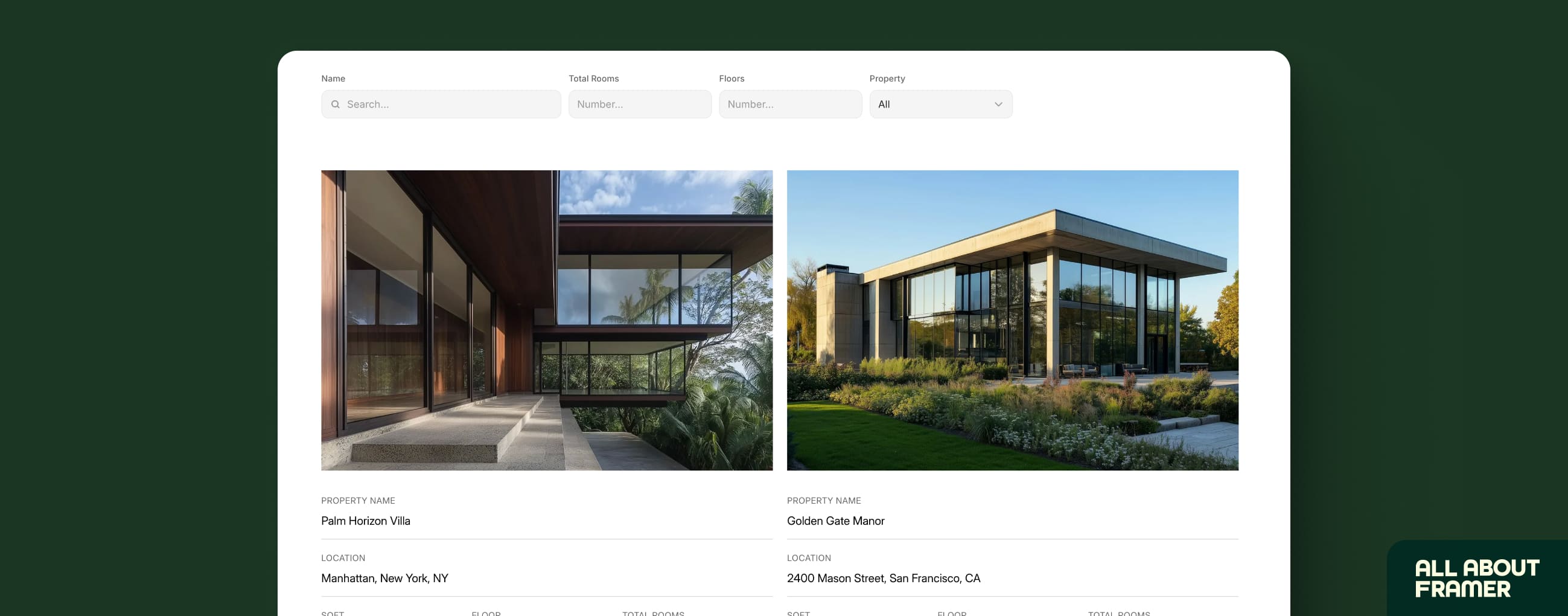
Stack as many as you need.
They all communicate with each other automatically.
A visitor can search by keyword, pick a tab, AND filter by checkbox — results narrow across all three at once.
Step 6 — Move Filters Anywhere on the Page
This is what makes Framer's approach unique.
Filter controls are not tied to any specific layer.
Drag them anywhere.
Search bar in the hero.
Tabs above the grid.
Dropdown in a sidebar.
Full layout flexibility — no other no-code tool does this.
Step 7 — Customise the Filter Design
Double-click any filter component.
You're now inside it — and it's just a regular Framer component.
Change the active state background.
Update the font.
Add an icon.
Use your brand colours.
Every filter is fully yours to design.
How Framer Dynamic Filters Work Behind the Scenes
This is worth understanding, because it unlocks some powerful moves.
Each filter control connects to a page variable.
Page variables are created automatically when you add a filter.
The filter sets the variable.
The collection list reads the variable.
That's the whole system.
What You Can Do With Page Variables
Because filters work through page variables, you can use those same variables in other interactions.
Show a live results count.
Trigger an animation when a filter is active.
Build a custom "X filters applied" indicator badge.
There's a lot of room to get creative here.
How to Add a Clear Filters Button in Framer
One of the most useful things to build — and barely documented anywhere.
Add a button to your page.
Label it "Clear Filters" or "Reset" — whatever fits.
Select it.
Go to Interactions.
Add an action: Reset Variables.
Done.
When a visitor clicks it — every filter resets to its default state instantly.
No code.
No complexity.
Framer Dynamic Filters and URL Query Parameters
Here's something easy to miss.
As visitors use your filters, the URL updates automatically with query parameters.
So /blog?category=design&level=beginner becomes a real, shareable link.
Why Framer Filter Query Parameters Matter
Visitors can bookmark a specific filtered view.
You can share a pre-filtered state in a link.
Browser back and forward navigation works correctly.
This is a big deal for directories and job boards especially.
Do Framer Dynamic Filters Affect SEO?
Google doesn't index query parameter variations by default.
Your main collection page is still indexed normally.
Filtered views won't create duplicate content issues.
If you want specific filtered views indexed separately — that's a more advanced setup.
For most sites, the default behaviour is exactly what you want.
Who Should Use Framer CMS Dynamic Filters?
Dynamic Filters work for almost any Framer site.
But they're a true game changer for these use cases specifically.
Blogs and editorial sites — filter by category, tag, author, or date.
Portfolios — filter case studies by type, industry, or tool.
Directories — filter listings by location, price, or availability.
Job boards — filter by role, salary, or remote/onsite.
Course libraries — filter by level, topic, or duration.
Template galleries — filter by style, price, or category.
If you're displaying repeating CMS content of any kind, this feature is for you.
But before setting up filters, understand the complete CMS foundation.
Honest Limitations of Framer Dynamic Filters
Being straight with you — because that's what this site is for.
No Sorting
Dynamic Filters filter your Framer CMS collection.
They don't sort it.
If you need "sort by price" or "sort by date," you'll need a third-party tool like Superfields or CMS Plus for now.
Multi-Reference Filtering Has Edge Cases
If your CMS items are tagged with multiple values through a reference field, filtering behaviour can be unpredictable depending on how the reference is structured.
Test this carefully before committing to a build.
Frequently Asked Questions About Framer Dynamic Filters
Can I combine multiple Framer filter types on one page?
Yes.
All filter types are compatible with each other.
Search + Tabs + Checkboxes all work together on the same collection list simultaneously.
Do Framer Dynamic Filters work on mobile?
Yes.
Filter components are standard Framer components.
They respond to your breakpoints exactly like everything else on your canvas.
Are Framer Dynamic Filters available on all plans?
Yes, Dynamic Filters are available on all plans.
What happened to the old variant-based filter method?
It still works.
Framer hasn't removed it.
But for 99% of use cases, Dynamic Filters are faster to set up, easier to maintain, and more flexible.
The old method was a workaround.
Dynamic Filters are the real solution.
Want more advanced CMS techniques? See the complete CMS reference guide for deeper strategies.